- 1,000,000+ installs
- 4.4★ from 21,550 ratings
- Android 8.0+
- On Google Play since 2010
The note you need, already on your home screen
Memo Widget turns a memo or a to-do list into a widget you see every time you unlock your phone. Pick one of nine sizes, choose the colours and the type, and stop opening an app to find out what you wrote down.
What it does
A notepad that lives where you already look
Every card says whether the feature is free or part of Premium. The full split is in the table further down, so nothing turns out to be paid later.
Memos as widgets
Any memo can become a home-screen widget. Tap the widget to edit the memo, and the change shows up on the home screen as soon as you save.
To-do lists with check-offs
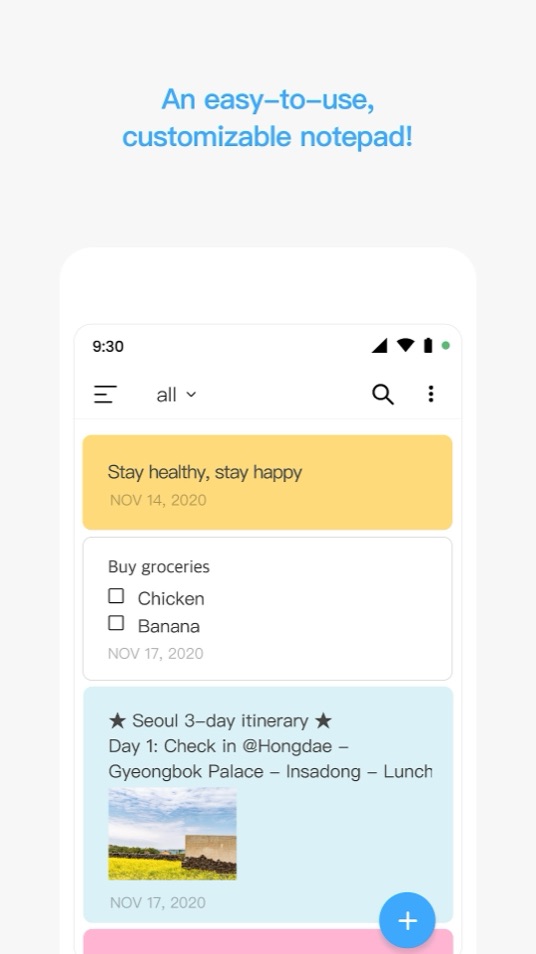
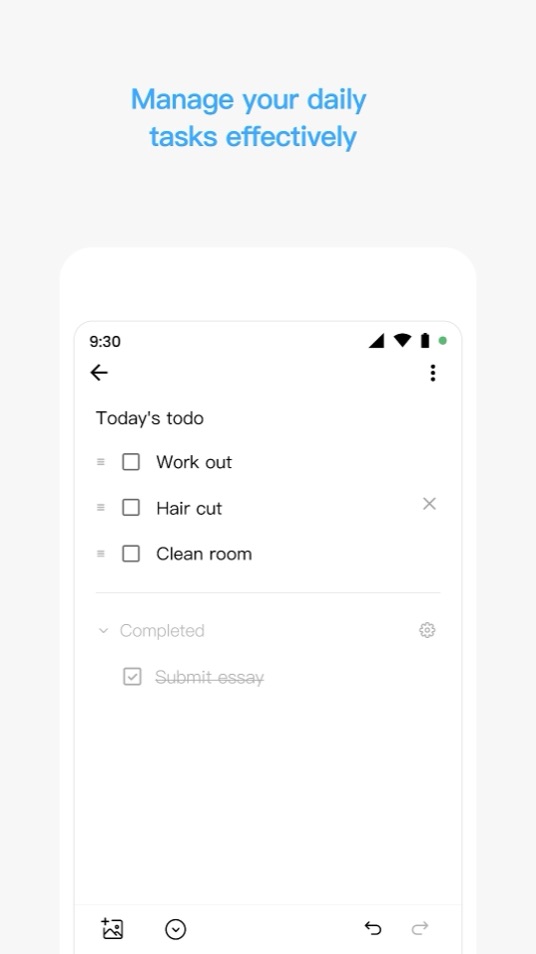
Write a list, tick items off, and completed ones fold away under their own heading. A to-do widget scrolls on its own, so a long list still fits.
Your colours, your type
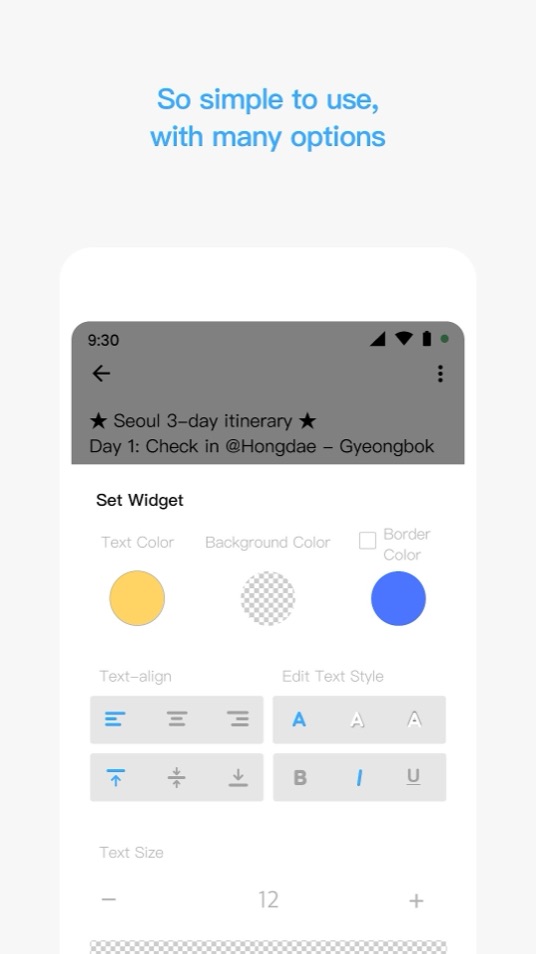
Text size and colour, background colour or full transparency, border, text shadow, bold, italic, underline, and alignment in both directions. Save a look as the default for new widgets.
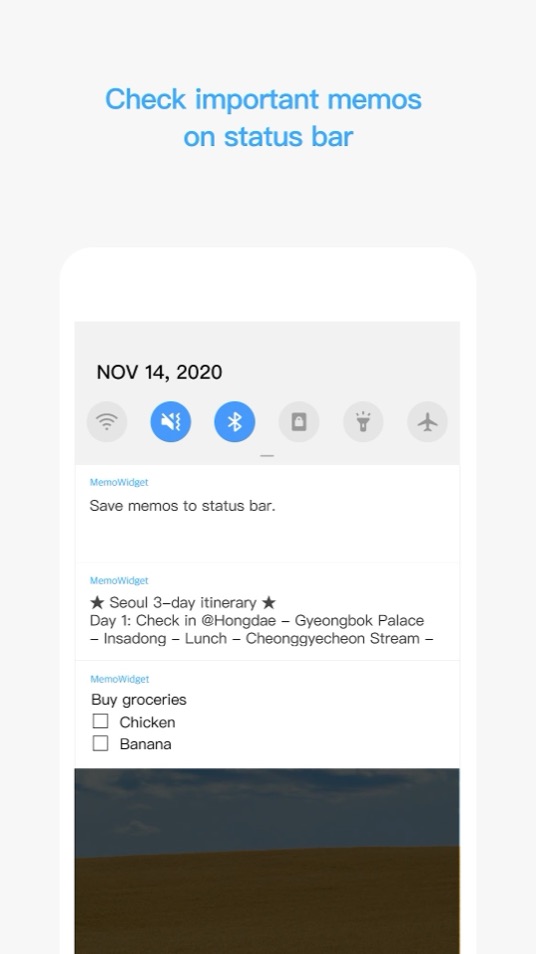
Memos in the status bar
Pin a memo to the notification shade and it is one swipe away from any app, without adding anything to the home screen.
Colour groups and search
Give memos a colour and it doubles as a group: filter the list to one colour, name the group, or search everything by keyword. Pin the important ones to the top.
Trash and Google Drive backup
Deleted memos go to a trash folder you can restore from. A backup to your own Google Drive brings everything back after a new phone or a reinstall.
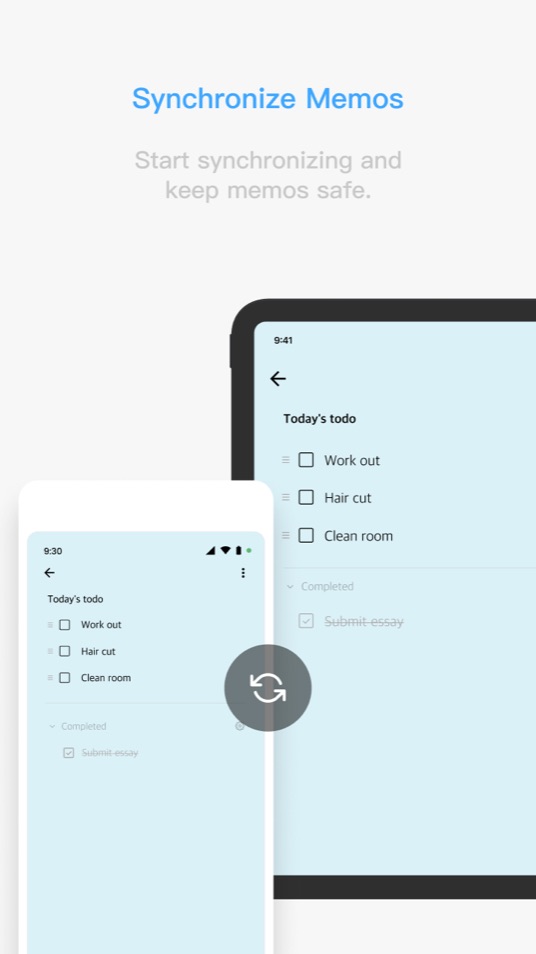
Sync between devices
Sign in with Google, Facebook or Apple and memos stay in step across your phones and tablets, Android and iPhone alike.
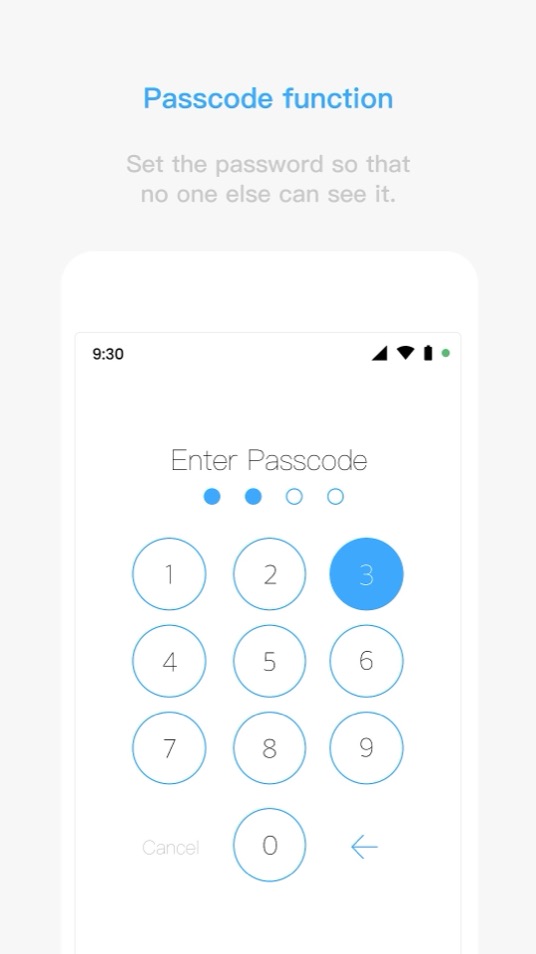
Passcode lock
Lock the app with a passcode or your phone’s fingerprint or face unlock, so a memo that is nobody else’s business stays that way.
Photos and backgrounds
Attach up to ten photos to a memo (the free version allows one), and decorate widgets with background photos and pattern images. Premium also removes the ads.
Widget sizes
Nine sizes, then resize it anyway
Start from a preset and drag the corners afterwards if it still is not right. A one-word reminder does not need a quarter of the screen, and a packing list does not fit in a single square.
Sizes are in home-screen cells. How big a cell is depends on your phone and launcher.
What you can change on each widget
- Text size and text colour
- Background colour, or a fully transparent background
- Border colour and text shadow, which keep text readable on a busy wallpaper
- Bold, italic and underline
- Left, centre or right alignment, and top, middle or bottom
- Scrolling inside the widget for memos longer than the space
All of this is in the free version. Premium adds background photos and pattern images on top.
Getting started
From install to home screen in a minute
-
Install from Google Play
Use the button on this page. There is no account to create for the free version and nothing to download from anywhere else. Install to internal storage: the developer notes that the app does not work properly from an SD card.
-
Write a memo or a list
Tap +, then the pencil for a memo or the check mark for a to-do list. Give it a colour if you like; that colour becomes its group.
-
Put it on the home screen
Long-press an empty spot on the home screen, choose Widgets, find MemoWidget, pick a size and choose the memo it should show.
The guide covers every step in more detail, plus the status bar, backup, sync and what to do when a widget stops updating.
Screenshots
What the app looks like
The developer’s promotional screenshots from the Google Play listing, captions included. Swipe or scroll sideways to see all six.
Free or Premium
Exactly what is free and what is not
This is how the developer splits the features at the time of writing. The app itself shows the current split before you pay anything.
| Feature | Free | Premium |
|---|---|---|
| Memos and to-do lists | Included | Included |
| Home-screen widgets, all nine sizes, resizable | Included | Included |
| Text, colour, border, shadow and alignment styling | Included | Included |
| Memos in the status bar | Included | Included |
| Colour groups, pinning, search, trash | Included | Included |
| Backup and restore through your Google Drive | Included | Included |
| Photos attached to a memo | 1 per memo | Up to 10 per memo |
| Background photos and pattern images | Not included | Included |
| Sync across devices (Google, Facebook or Apple sign-in) | Not included | Included |
| Passcode and biometric lock | Not included | Included |
| Advertising | Shown | Removed |
Permissions and data
What the app asks for, and why
A memo app with a long permission list deserves an explanation rather than a shrug. The authoritative lists are on the Play listing under App permissions and Data safety.
| Permission on the listing | What it is for |
|---|---|
| Photos, media and files; storage | Attaching photos to memos, and backing up and restoring memos. Storage for backup is the one permission the developer explains on the listing itself. |
| Camera | Taking a photo to attach to a memo. Photo attachment is the camera-related feature the app describes. |
| Draw over other apps, disable your screen lock, phone status | The optional first screen feature, which shows your memo as soon as the screen turns on. The developer’s guide says it needs the phone and “display over other apps” permissions. If you never switch it on, it has nothing to do. |
| Run at startup | Putting the status-bar memo and widgets back after the phone restarts. |
| Full network access, network and Wi-Fi state | Ads in the free version, Google Drive backup, and sync for Premium. |
| Precise location | Listed among the app’s permissions; the app does not describe a location feature. Android asks you before any app can use your location, and you can say no. |
The data safety declaration, in plain words
On Google Play the developer declares that the app may collect your name (optional) and photos (optional) for app functionality, user IDs for account management, and device or other IDs for analytics and advertising. Accounts exist for Premium sync; the free version works without signing in.
It declares that no data is shared with third parties, that data is encrypted in transit, and that you can request deletion.
The app has its own privacy policy, separate from this website’s. The current declaration is always the one on the Play listing.
Questions
Asked most often
Is Premium a subscription, and how do I cancel it?
Yes. Premium is a 1-, 6- or 12-month subscription that renews automatically unless you cancel at least 24 hours before the period ends. You cancel in the Google Play app under Payments & subscriptions, not in Memo Widget. Step by step.
Do I need an account?
Not for the free version. Memos, widgets, the status bar and Google Drive backup all work without signing in. An account only comes in for Premium sync, because memos need somewhere to sync through.
My widget stopped updating after I edited the memo
This is almost always the launcher. Restart the launcher or the phone. If it keeps happening, the developer recommends the phone’s own home screen rather than a third-party launcher. More fixes.
Is there an iPhone version?
Yes, the developer publishes it on both platforms. Premium sync works between the two when you sign in with the same account.
Put your next memo on the home screen
Free to install from Google Play, with ads, and an optional auto-renewing Premium subscription. Installed from Google Play only; this site never asks you to sideload an APK.
Get it on Google Play